
How to Add IPTV Xtream Code on PC (Windows and Mac)
Want to add an IPTV Xtream Code on your PC or Mac? With a compatible IPTV player such as IPTV Smarters Pro, you can sign in with the Xtream Codes details from your provider and watch live TV, movies and series on your computer.
This IPTV Xtream Code PC guide shows you step by step how to install a player on Windows and macOS, enter your Xtream Codes login details, and fix the most common connection problems.
Please note: IPTVCodeXtream does not sell subscriptions, provide logins or host any streams. Only use services that are authorized to distribute the channels they offer. See our Disclaimer for details.

What is an IPTV Xtream Code?
An IPTV Xtream Code is a set of login details supplied by your IPTV service provider. A compatible player uses these details to connect to the provider’s server through the Xtream Codes API and load your channels, on-demand content and programme guide.
Your Xtream Codes login usually includes three details:
- Username: your IPTV account username.
- Password: your IPTV account password. The username and password are usually case-sensitive.
- Server URL: the server address from your provider, usually starting with
http://orhttps://and often followed by a port number, for examplehttp://example.com:8080.
To get started, you need a valid subscription or an authorized trial and a player app that supports Xtream Codes logins. If you do not have login details yet, read our guide on how to get a free IPTV Xtream Code through a legitimate trial.
IPTV Xtream Code PC setup on Windows
Follow these steps to complete your IPTV Xtream Code PC setup on a Windows 10 or Windows 11 computer with IPTV Smarters Pro. Menu names can differ slightly between app versions.
Step 1: Download IPTV Smarters Pro for Windows
Download the Windows version of IPTV Smarters Pro from this page:
Download IPTV Smarters Pro for Windows
Run the installer and follow the on-screen instructions. If Windows shows a security prompt, check that the publisher name matches the official developer before you continue.
Step 2: Open IPTV Smarters Pro
When the installation is complete, open IPTV Smarters Pro from your desktop or the Start menu. Accept the terms of use if asked, then look for an option such as Add User, Add New User or Login with Xtream Codes API.
Step 3: Enter your Xtream Codes details
Select Login with Xtream Codes API and fill in the details from your provider:
- Any Name: a profile name of your choice, for example My IPTV.
- Username: your IPTV username.
- Password: your IPTV password.
- Server URL: the complete server address, including
http://orhttps://and the port number if your provider gave one.
Check every field for typing mistakes and extra spaces before you continue.

Step 4: Add your IPTV account
Click Add User or the equivalent confirmation button. The app connects to your provider’s server and downloads your playlist. The first load can take a few minutes.
Step 5: Start watching IPTV on Windows
Once your playlist has loaded, open the section you want to watch. Depending on your subscription, you may see:
- Live TV: live television channels sorted into categories.
- Movies: on-demand films.
- Series: TV shows and episodes.
- EPG: the electronic programme guide, when your provider supplies it.
Your IPTV Xtream Code PC setup on Windows is now complete.
How to add IPTV Xtream Code on a Mac
The process on a Mac is similar. The main difference is that you install the app from the Apple App Store.
Step 1: Download Smarters Pro for Mac
Open the Smarters Pro listing on the Apple App Store and check the compatibility information to confirm that the app supports your Mac and macOS version. Availability can vary by country.
Step 2: Install and open Smarters Pro
Install the app, open it and accept any terms of use shown on the screen.
Step 3: Choose the Xtream Codes login option
Look for Login with Xtream Codes API, Add User or a similar option, and select it.
Step 4: Enter your IPTV login details
Fill in the fields with the details from your provider:
- Profile name: any name you like.
- Username: your assigned username.
- Password: your assigned password.
- Server URL: the complete server address, including any port number.
Step 5: Connect and load your playlist
Confirm your details and wait for the app to connect. If your subscription is active, your channels and on-demand content will load.
Important: the Mac version may look different from the Windows app. If you do not see an Xtream Codes login option, check which login methods the app supports, or use another macOS player that supports Xtream Codes.

Alternative: use an M3U playlist link on PC or Mac
Some providers also send an M3U playlist link, which normally contains your username and password inside the URL. You can open it in a desktop media player that supports network streams, such as VLC. On Windows, choose Media > Open Network Stream; on a Mac, choose File > Open Network. Then paste the link.
An M3U link works for basic playback, but a dedicated IPTV player usually gives you a better layout, categories and a programme guide. Keep the link private, because anyone who has it can use your account.

Where can you get your IPTV Xtream Codes?
Your Xtream Codes login details always come from your IPTV service provider. Installing IPTV Smarters Pro or another player does not create them, because these apps are players only and include no channels.
After you buy a subscription or receive an authorized trial, look for your details in the welcome email, your customer account or messages from your provider. Keep your username, password and server URL private, and never share them publicly.
Looking for a provider? Compare your options using the button below.
Common IPTV Xtream Code PC problems on Windows and Mac
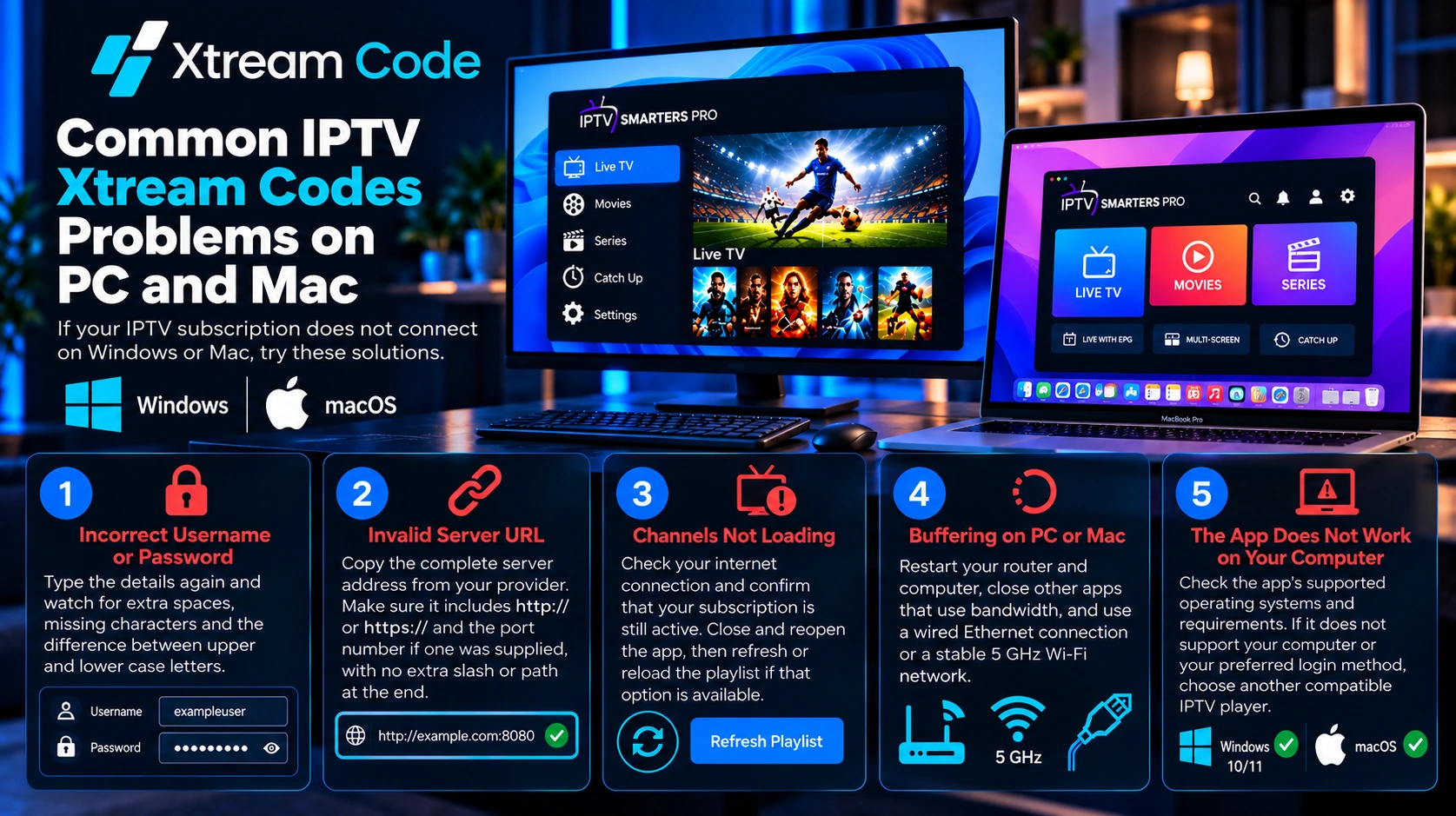
If your IPTV subscription does not connect on Windows or Mac, try these solutions.
Incorrect username or password
Type the details again and watch for extra spaces, missing characters and the difference between upper and lower case letters.
Invalid server URL
Copy the complete server address from your provider. Make sure it includes http:// or https:// and the port number if one was supplied, with no extra slash or path at the end.
Channels not loading
Check your internet connection and confirm that your subscription is still active. Close and reopen the app, then refresh or reload the playlist if that option is available.
Buffering on PC or Mac
Restart your router and computer, close other apps that use bandwidth, and use a wired Ethernet connection or a stable 5 GHz Wi-Fi network.
The app does not work on your computer
Check the app’s supported operating systems and requirements. If it does not support your computer or your preferred login method, choose another compatible IPTV player.
Windows vs Mac: which is better for IPTV?
Both Windows PCs and Macs work well for IPTV when you use a compatible player and a valid subscription. Windows offers a wider choice of IPTV players, while Mac users mainly install apps from the App Store, so the options depend on what is available in your region.
In practice, your IPTV Xtream Code PC experience depends more on your internet connection, your computer’s performance, the player you choose and the quality of your IPTV service than on the operating system.
Set up Xtream Codes on your other devices
Want to watch on more than your computer? Follow our guides for Amazon Firestick, Android phones and tablets, Samsung and LG Smart TVs, Roku, Apple TV and iPhone. Most subscriptions allow a limited number of simultaneous connections, so check your plan before you sign in on several devices.
Frequently asked questions
How do I complete an IPTV Xtream Code PC setup?
Install a compatible IPTV player, choose its Xtream Codes API login option, enter your username, password and server URL, then confirm to load your playlist.
Can I use IPTV Xtream Codes on Windows 11?
Yes, as long as your IPTV player supports Windows 11 and your provider supports Xtream Codes logins.
Can I install Smarters Pro on a MacBook?
Yes, if the App Store version supports your Mac and macOS version. Check the compatibility information on the App Store listing before you install it.
What information do I need to activate IPTV?
You usually need your IPTV username, password and server URL. Your service provider supplies these details.
Is IPTV Smarters Pro an IPTV subscription?
No. IPTV Smarters Pro is a player only. You need a separate subscription or an authorized trial from an IPTV provider to watch content.
Why is my Xtream Code not working?
Common causes include a wrong username or password, an incorrect server URL, an expired subscription, a network problem or an issue on the provider’s side. Check your details and contact your provider if the problem continues.
Conclusion
Completing your IPTV Xtream Code PC setup on Windows or Mac is straightforward once you have a compatible player and your login details. Install the app from an official source, choose the Xtream Codes API login, enter your username, password and server URL, and wait for your playlist to load. If something goes wrong, the troubleshooting steps above solve most connection problems.
Always get your login details from a legitimate, authorized IPTV provider.