
How to Add IPTV Xtream Code on Firestick (Smarters, IBO Player, TiviMate)
Want to watch IPTV on your TV with an Amazon Fire TV Stick? You can add the Xtream Codes details from your provider to a player app and watch live TV, movies and series on your Firestick.
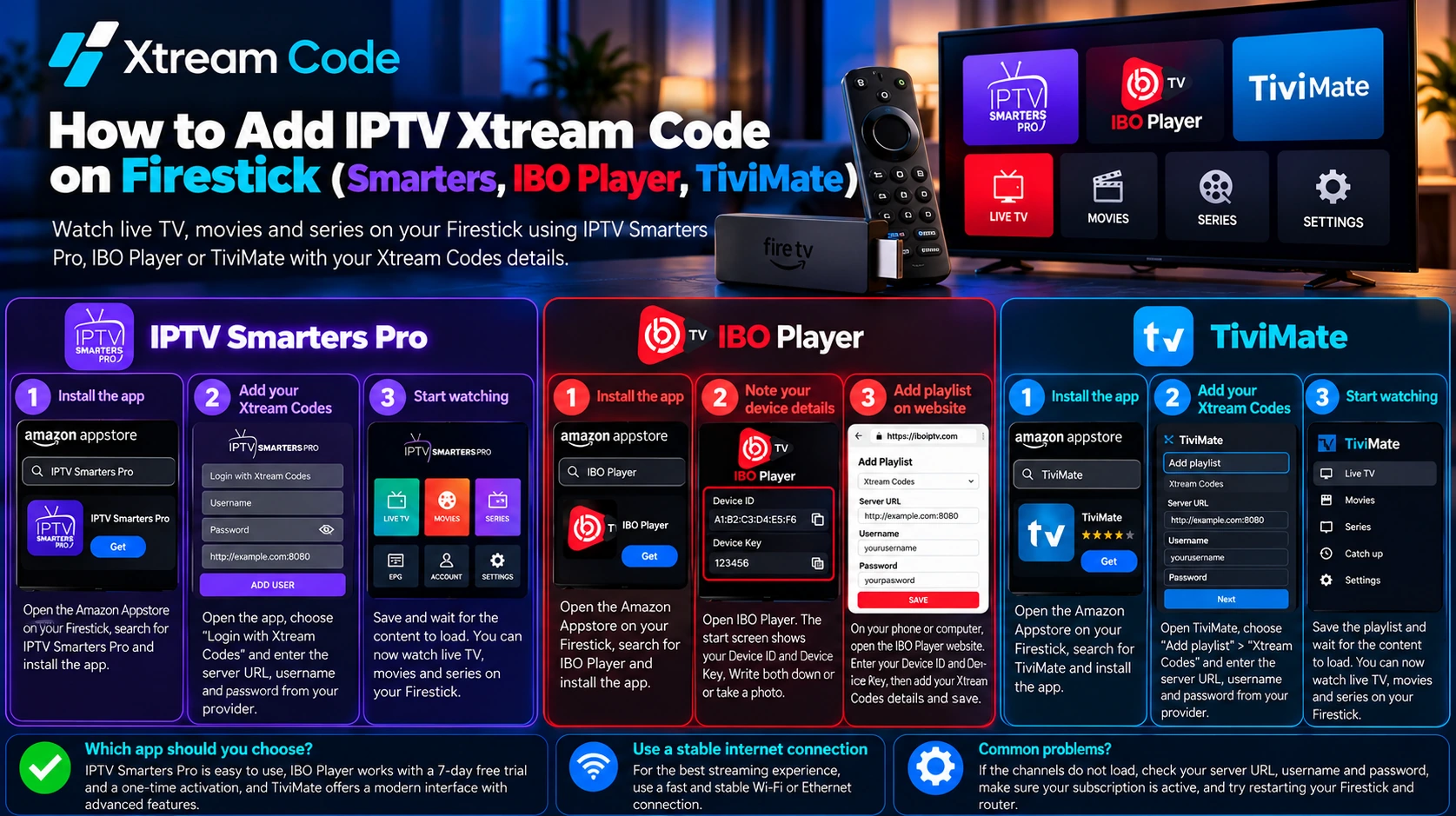
This IPTV Xtream Code Firestick guide shows you how to prepare your Fire TV and set up three popular players step by step: IPTV Smarters Pro, IBO Player and TiviMate. It also explains which app to choose and how to fix the most common connection problems.
Please note: IPTVCodeXtream does not sell subscriptions, provide logins or host any streams. Only use services that are authorized to distribute the channels they offer. See our Disclaimer for details.
What is an IPTV Xtream Code?
An IPTV Xtream Code is a set of login details supplied by your IPTV service provider. A compatible player uses these details to connect to the provider’s server through the Xtream Codes API and load your channels, on-demand content and programme guide.
Your Xtream Codes login usually includes three details:
- Username: your IPTV account username.
- Password: your IPTV account password. The username and password are usually case-sensitive.
- Server URL: the server address from your provider, usually starting with
http://orhttps://and often followed by a port number, for examplehttp://example.com:8080.
To get started, you need a valid subscription or an authorized trial and a compatible player. If you do not have login details yet, read our guide on how to get a free IPTV Xtream Code through a legitimate trial.
Best apps for IPTV Xtream Code Firestick
Each of these players works for an IPTV Xtream Code Firestick setup:
- IPTV Smarters Pro: a free player. You type your Xtream Codes login directly on the TV.
- IBO Player: you add your playlist on the IBO Player website with a Device ID and Device Key. It includes a 7-day free trial, then a one-time activation fee.
- TiviMate: a TV guide-style interface with a clear programme guide. The basic version is free, and Premium features need a paid upgrade.
Before you start: prepare your Firestick
Step 1: Check whether your Fire TV runs Fire OS or Vega OS
Go to Settings > My Fire TV > About and look at the software version.
- Fire OS: the version says Fire OS. Your device is Android-based, so you can install apps from the Amazon Appstore and from a developer’s official download link.
- Vega OS: the version is shown as OS and starts with 1. Newer models such as the Fire TV Stick 4K Select run Vega OS and can only install apps from the Amazon Appstore.
You can check the full list of Fire TV models that run Vega OS on AFTVnews.
Step 2: Allow apps from Downloader (Fire OS only)
These players may not be listed in the Amazon Appstore in your country. On Fire OS devices, you can install them with the free Downloader app:
- Install the free Downloader app from the Amazon Appstore.
- Go to Settings > My Fire TV. If you do not see Developer Options, open About and select your device name seven times, then go back.
- Open Developer Options > Install unknown apps and turn it on for Downloader.
Only download apps from the developer’s official website. Unofficial copies of apps can contain malware. On Vega OS devices, you can only use players that are listed in the Amazon Appstore.
Method 1: IPTV Smarters Pro on Firestick
Install IPTV Smarters Pro
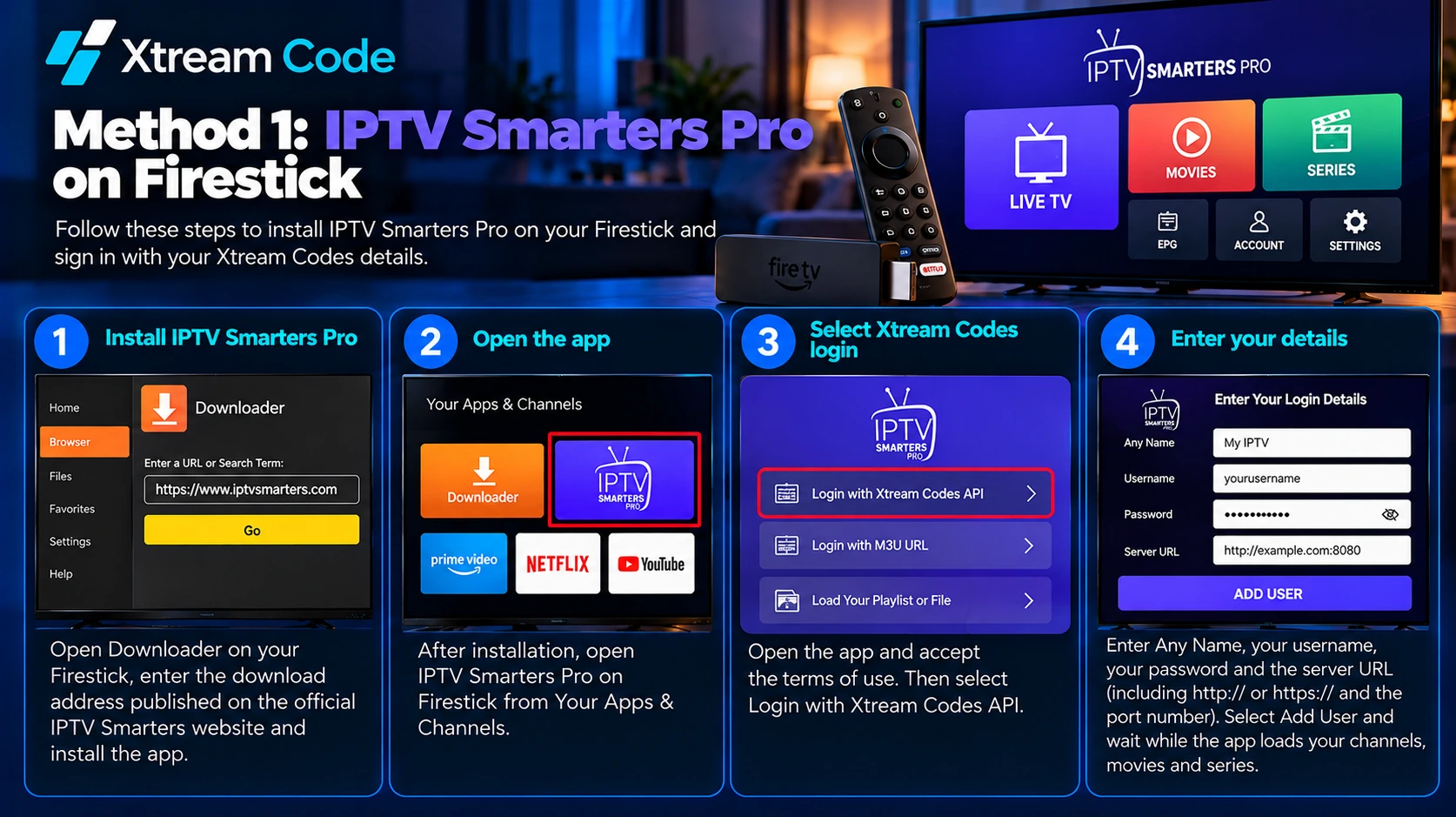
Open Downloader, enter the download address published on the official IPTV Smarters website and install the app. Then open IPTV Smarters Pro on Firestick from Your Apps & Channels.
Sign in with your Xtream Codes details
- Open the app and accept the terms of use.
- Select Login with Xtream Codes API.
- Enter Any Name (for example My IPTV), your username, your password and the server URL, including
http://orhttps://and the port number. - Select Add User and wait while the app loads your channels, movies and series.
That completes your IPTV Xtream Code Firestick setup with IPTV Smarters Pro.
Method 2: IBO Player on Firestick
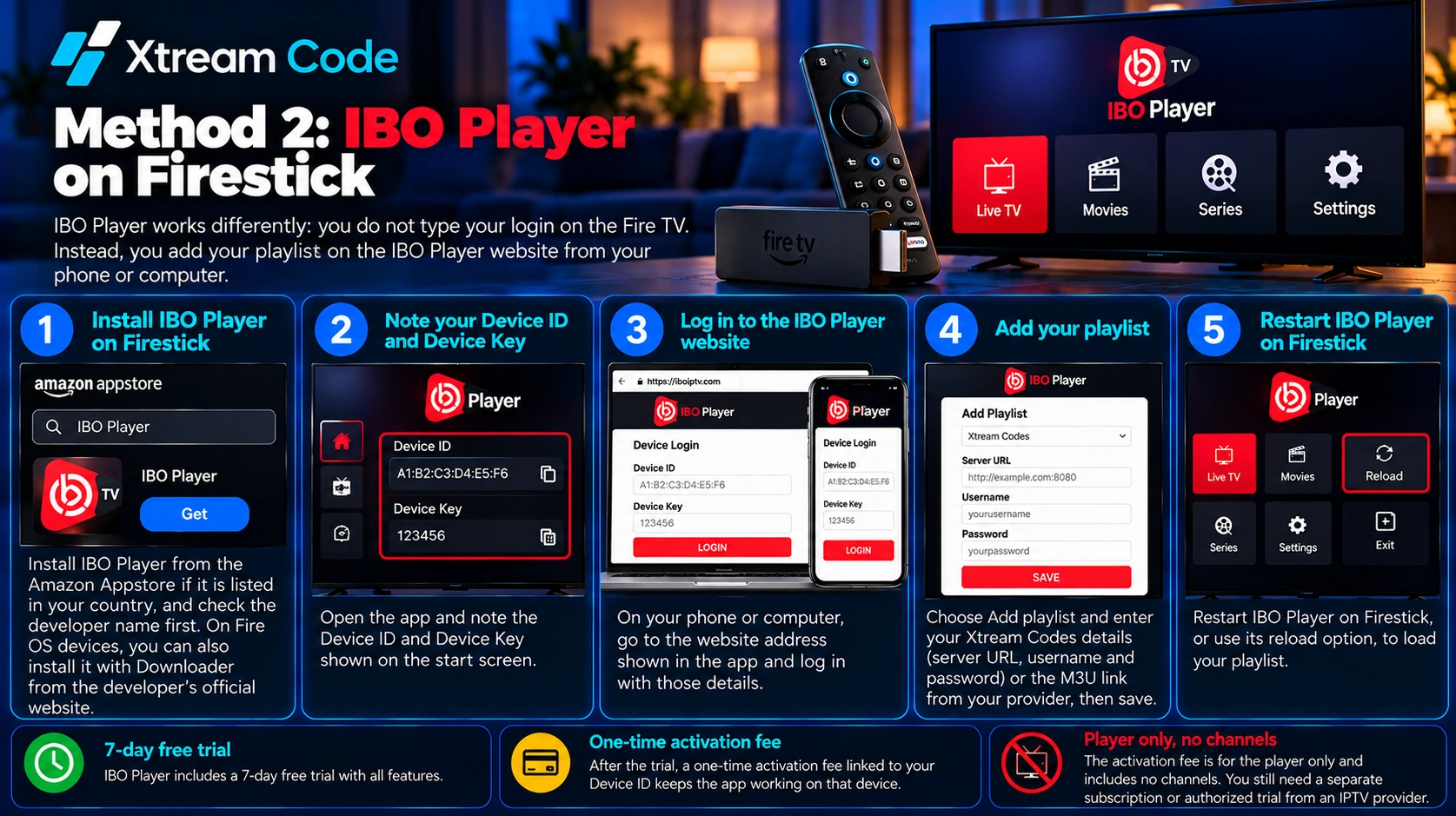
IBO Player works differently: you do not type your login with the Fire TV remote. Instead, you add your playlist on the IBO Player website from your phone or computer.
- Install IBO Player from the Amazon Appstore if it is listed in your country, and check the developer name first. On Fire OS devices, you can also install it with Downloader from the developer’s official website.
- Open the app and note the Device ID and Device Key shown on the start screen.
- On your phone or computer, go to the website address shown in the app and log in with those details.
- Choose Add playlist and enter your Xtream Codes details (server URL, username and password) or the M3U link from your provider, then save.
- Restart IBO Player on Firestick, or use its reload option, to load your playlist.
IBO Player includes a 7-day free trial. After that, a one-time activation fee linked to your Device ID keeps the app working on that device. The fee is for the player only and includes no channels.
Method 3: TiviMate on Firestick
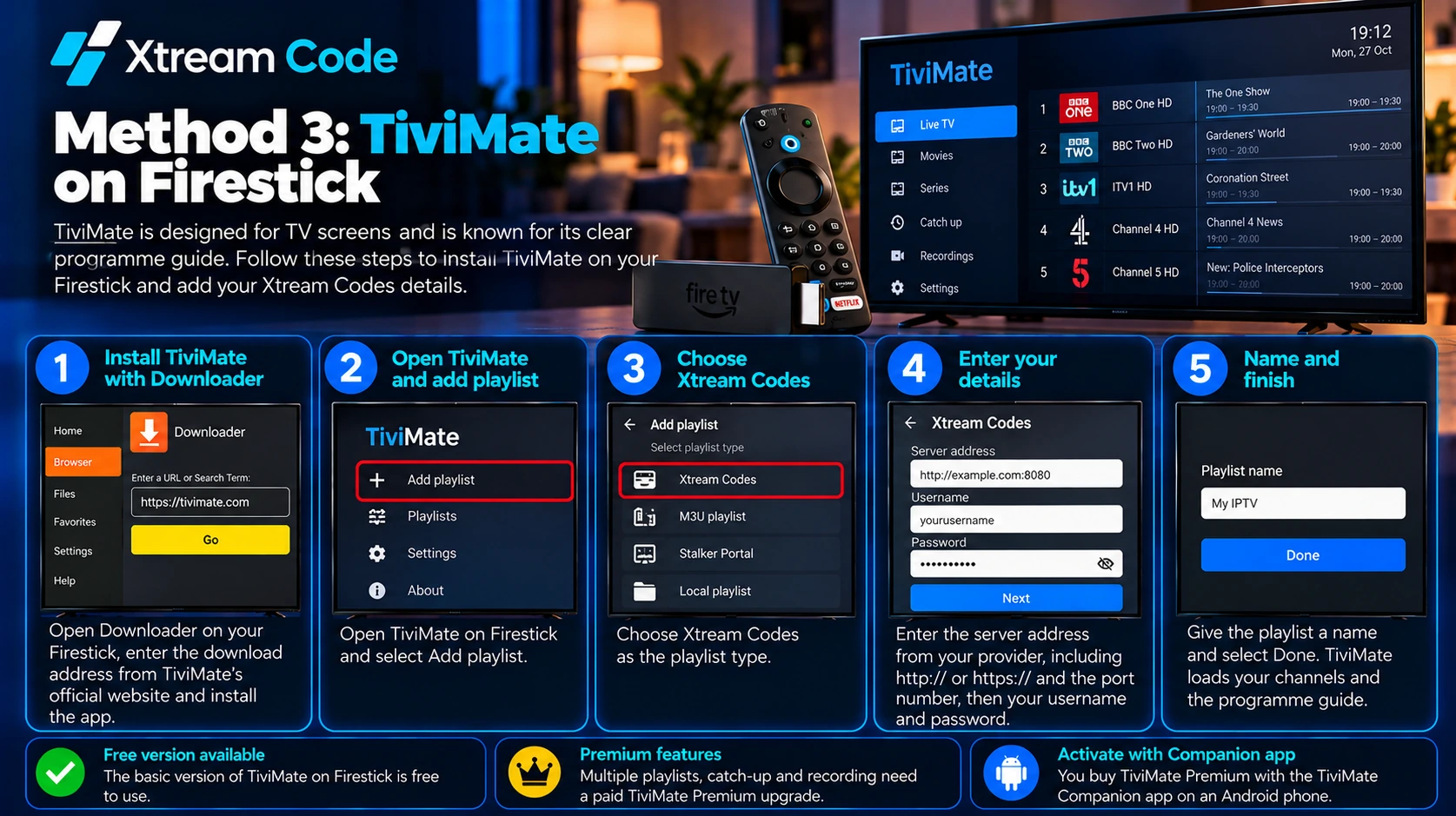
TiviMate is designed for TV screens and is known for its clear programme guide. On Fire TV, it is installed with Downloader from the developer’s official website, so it only works on Fire OS devices.
- Open Downloader, enter the download address published on TiviMate’s official website and install the app.
- Open TiviMate and select Add playlist.
- Choose Xtream Codes as the playlist type.
- Enter the server address from your provider, including
http://orhttps://and the port number, then your username and password. - Select Next, give the playlist a name and select Done. TiviMate loads your channels and the programme guide.
The basic version of TiviMate on Firestick is free. Premium features, such as multiple playlists, catch-up and recording, need a paid TiviMate Premium upgrade, which you buy with the TiviMate Companion app on an Android phone.
IPTV Smarters Pro vs IBO Player vs TiviMate
- Quickest to set up: IPTV Smarters Pro on Firestick, because you type your login directly in the app.
- Least typing with the remote: IBO Player on Firestick, because you enter your details on your phone or computer.
- Best TV guide: TiviMate on Firestick, with a classic programme guide layout. Premium unlocks more features.
- Vega OS devices: only players listed in the Amazon Appstore for your device will work, so search the Appstore and check whether an app supports Xtream Codes.
Start watching IPTV on your Firestick
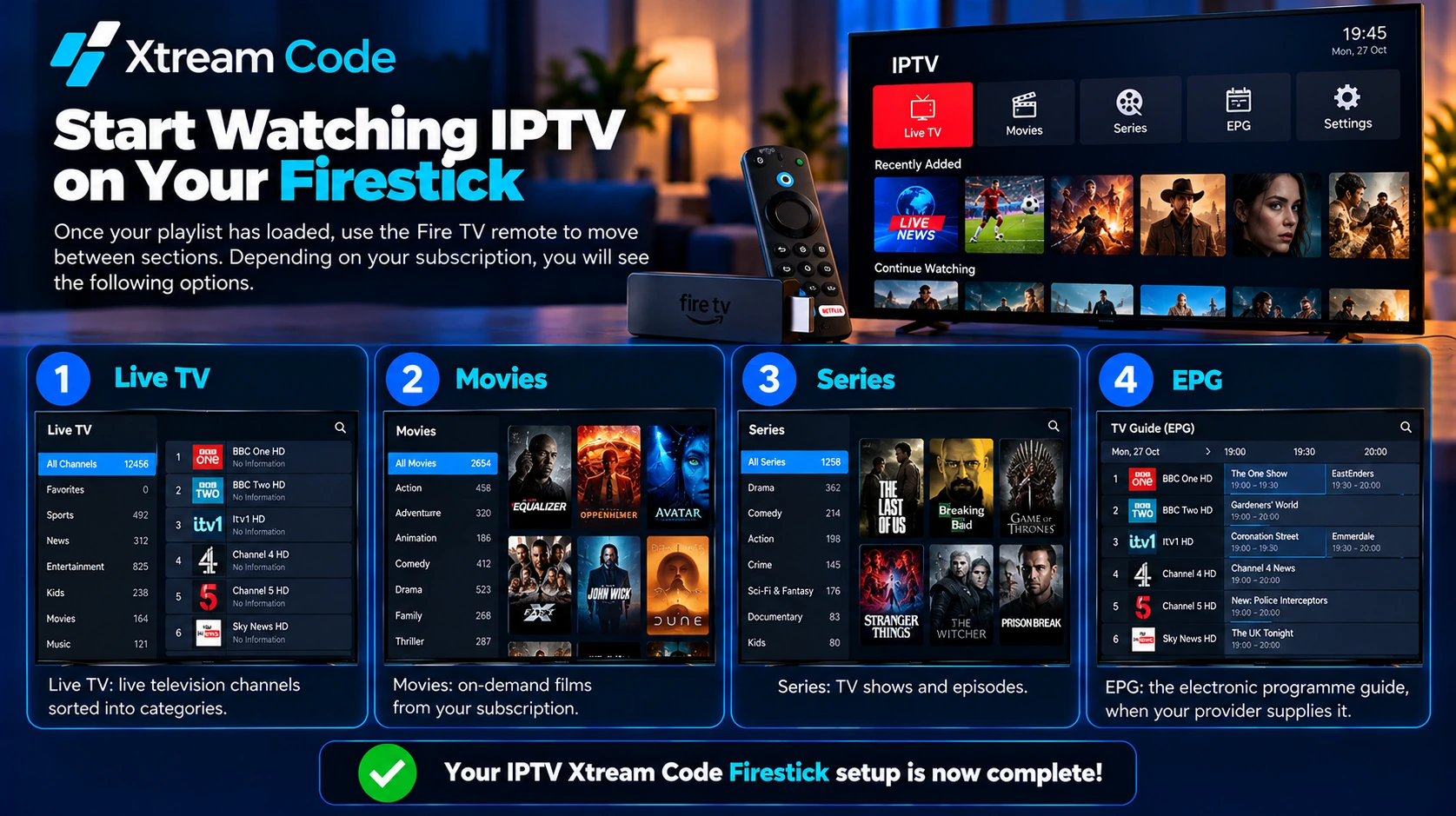
Once your playlist has loaded, use the Fire TV remote to move between sections. Depending on your subscription, you will see:
- Live TV: live television channels sorted into categories.
- Movies: on-demand films.
- Series: TV shows and episodes.
- EPG: the electronic programme guide, when your provider supplies it.
Your IPTV Xtream Code Firestick setup is now complete.
Where can you get your IPTV Xtream Codes?
Your Xtream Codes login details always come from your IPTV service provider. Installing IPTV Smarters Pro, IBO Player, TiviMate or another player does not create them, because these apps are players only and include no channels.
After you buy a subscription or receive an authorized trial, look for your details in the welcome email, your customer account or messages from your provider. You need them for every IPTV Xtream Code Firestick setup. Keep your username, password and server URL private, and never share them publicly.
Looking for a provider? Compare your options using the button below.
Common IPTV Xtream Code Firestick problems
If your IPTV Xtream Code Firestick setup does not work, try these solutions.
Downloader cannot install the app
Check that Install unknown apps is turned on for Downloader. If your Fire TV runs Vega OS, apps from outside the Amazon Appstore cannot be installed, so use a player from the Appstore instead.
Invalid server URL or login
Copy the complete server address from your provider, including http:// or https:// and the port number if one was supplied. Type your username and password again and watch for extra spaces and upper or lower case letters.
The playlist does not appear in IBO Player
Restart IBO Player on Firestick. Then check that you logged in to the website with the exact Device ID and Device Key shown on your TV, and that you saved the playlist.
Channels not loading or buffering
Check that your subscription is still active. Restart your router and your Fire TV with Settings > My Fire TV > Restart. Move the router closer or use an Ethernet adapter, and close apps running in the background.
The app freezes or crashes
Go to Settings > Applications > Manage Installed Applications, select the player and choose Clear cache. Make sure the app is up to date. If the problem continues, uninstall and reinstall it.
Trial ended or Premium features locked
When the IBO Player trial ends, pay the one-time activation fee to continue. In TiviMate, features such as multiple playlists and recording stay locked until you upgrade to Premium.

Set up Xtream Codes on your other devices
Want to watch on more than your Firestick? Follow our guides for iPhone, Apple TV, PC and Mac, Android phones and tablets, Samsung and LG Smart TVs and Roku. Most subscriptions allow a limited number of simultaneous connections, so check your plan before you sign in on several devices.
Frequently asked questions
Which is the best app for an IPTV Xtream Code Firestick setup?
IPTV Smarters Pro is the quickest to set up, IBO Player lets you enter your details on your phone or computer, and TiviMate has the best programme guide. All three support Xtream Codes logins.
Is IPTV Smarters Pro free?
Yes. IPTV Smarters Pro is a free player. You still need a subscription or an authorized trial from an IPTV provider.
Do I need TiviMate Premium?
No. The free version can play your Xtream Codes playlist. Premium adds features such as multiple playlists, catch-up and recording.
Can I install these apps on every Fire TV Stick?
On Fire OS devices, yes. On Vega OS devices such as the Fire TV Stick 4K Select, you can only install apps that are listed in the Amazon Appstore.
Is it safe to use Downloader?
Downloader itself is available in the Amazon Appstore. The risk comes from what you download with it, so only install apps from the developer’s official website.
Why is my Xtream Code not working?
Common causes include a wrong username or password, an incorrect server URL, an expired subscription or a network problem. Check your details and contact your provider if the problem continues.
Conclusion
Completing your IPTV Xtream Code Firestick setup is straightforward once you have your login details. Check whether your Fire TV runs Fire OS or Vega OS, choose IPTV Smarters Pro, IBO Player or TiviMate, add your Xtream Codes details and wait for your playlist to load. If something goes wrong, the troubleshooting steps above solve most connection problems.
Always get your login details from a legitimate, authorized IPTV provider.