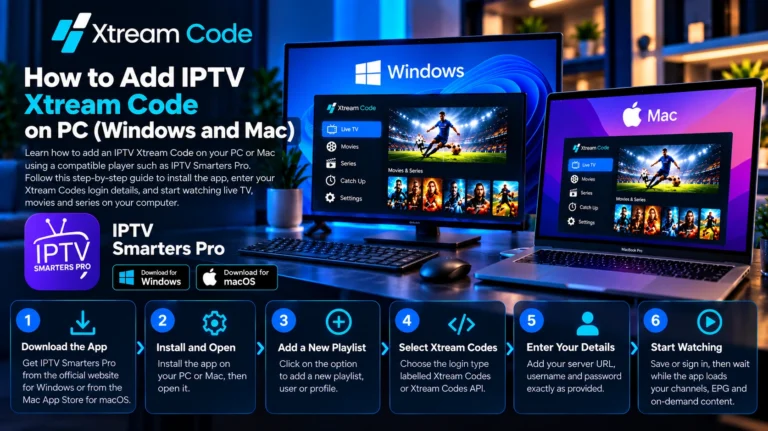
How to Add IPTV Xtream Code on PC (Windows and Mac)
Use a desktop IPTV player with Xtream Codes support, or play your M3U link in VLC, to watch IPTV on Windows, macOS or Linux.

Use a desktop IPTV player with Xtream Codes support, or play your M3U link in VLC, to watch IPTV on Windows, macOS or Linux.
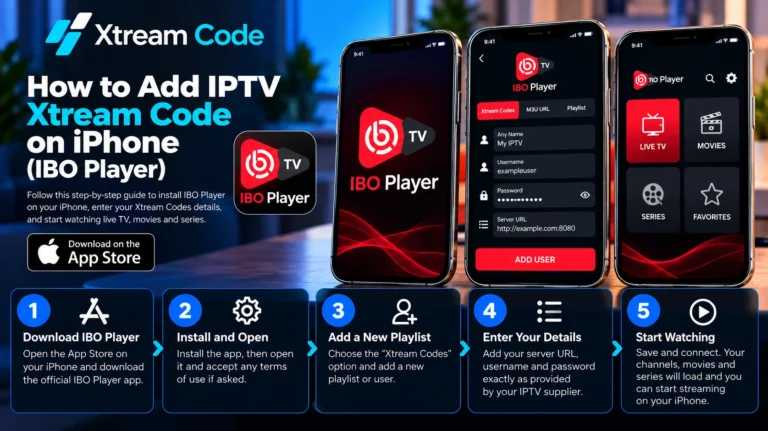
Choose a trustworthy IPTV player from the App Store, add your Xtream Code login on your iPhone and send channels to your TV with AirPlay.
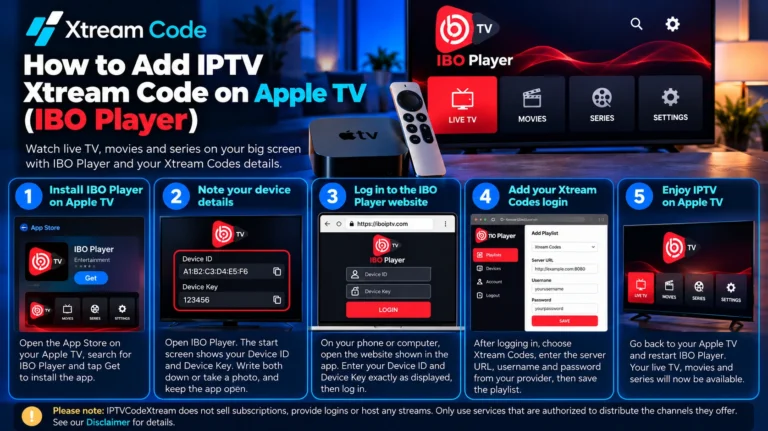
Install an IPTV player from the Apple TV App Store, enter your Xtream Code login with the Siri Remote or your iPhone, and fix common playback problems.
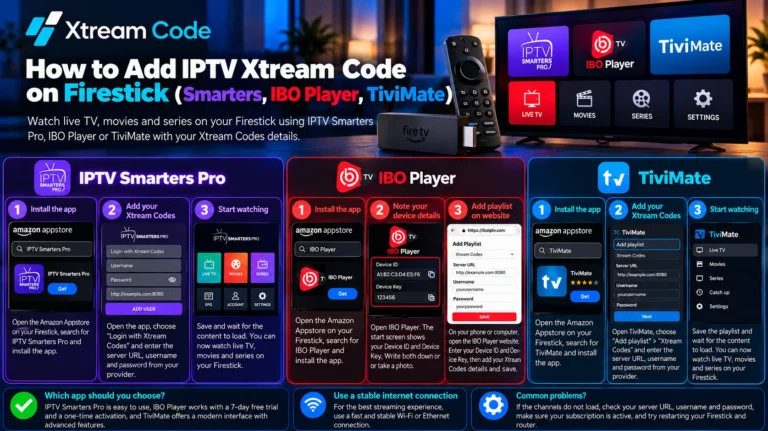
Check whether your Fire TV runs Fire OS or Vega OS, install a compatible IPTV player and sign in with your Xtream Code server URL, username and password.
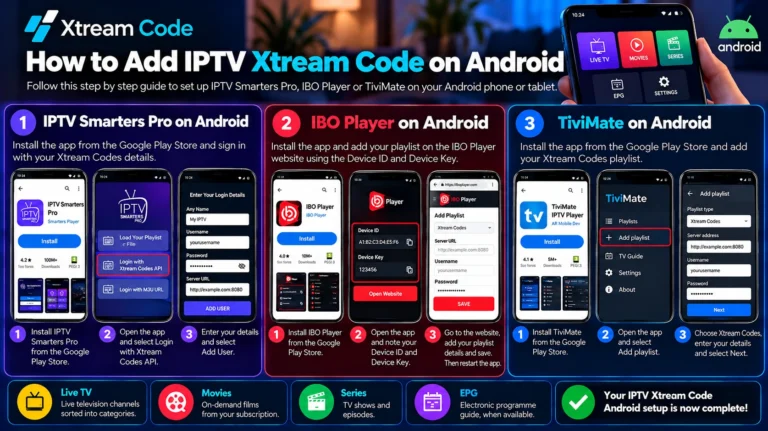
Install a trustworthy IPTV player from Google Play, add your Xtream Code login and learn quick fixes for login, playback and TV guide problems on Android.
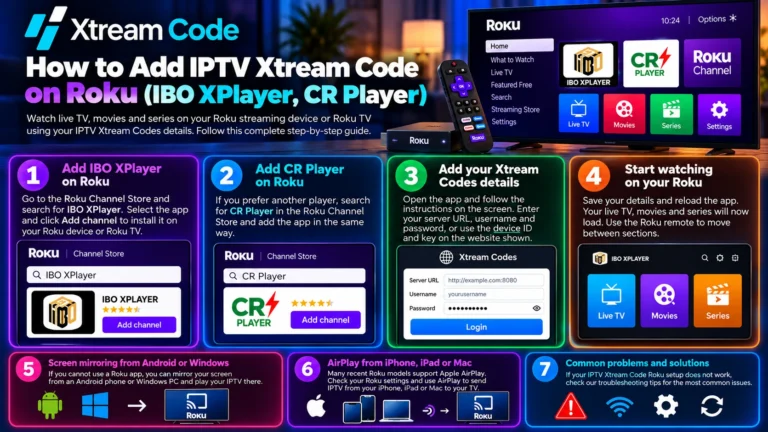
Roku doesn’t run Android apps, so IPTV works differently. Learn your options: a player from the Roku store, an M3U link, screen mirroring or AirPlay.
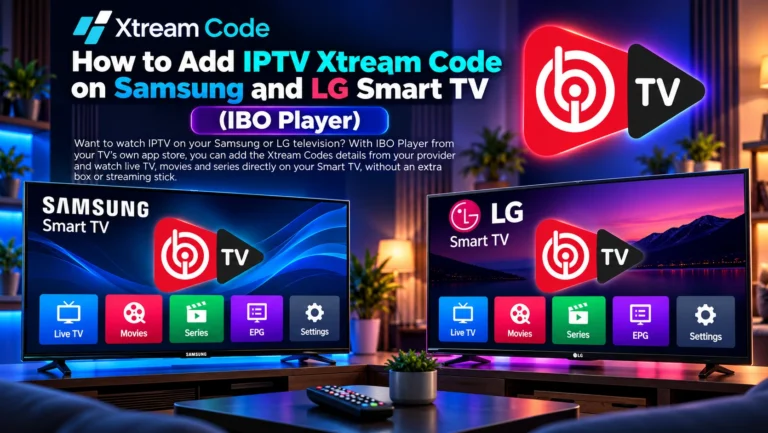
Find an IPTV player in the Samsung or LG app store, complete any activation step and sign in with your Xtream Code server URL, username and password.