
IPTV Smarters Pro: How to Set Up Xtream Codes on Any Device
IPTV Smarters Pro is one of the best-known IPTV players for Android, Firestick and Windows. You type the Xtream Codes details from your IPTV provider directly in the app and watch live TV, movies and series with a simple, touch-friendly layout.
This IPTV Smarters Pro guide explains which devices the app runs on, how to log in with Xtream Codes step by step, which settings help playback and how to fix the most common problems.
Please note: IPTVCodeXtream does not sell subscriptions, provide logins or host any streams. Only use services that are authorized to distribute the channels they offer. See our Disclaimer for details.
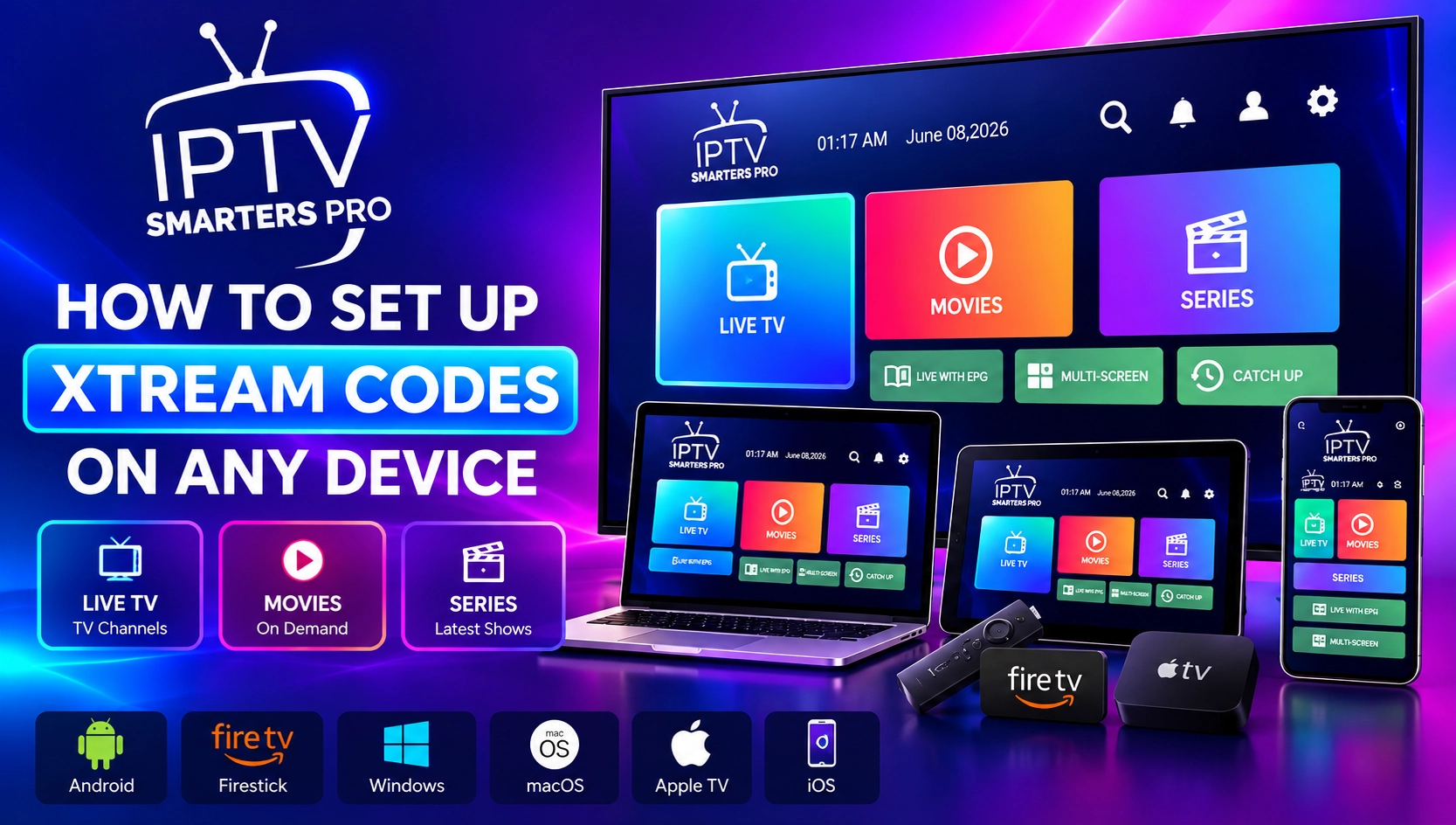
What is IPTV Smarters Pro?
IPTV Smarters Pro is a media player for IPTV playlists, developed by WHMCS Smarters. It includes no channels or content of its own. You enter the login details from your provider, and the app loads your live channels, on-demand content and programme guide.
Main IPTV Smarters Pro features
- Xtream Codes API login: sign in with your server URL, username and password.
- M3U playlists: add a playlist link instead, if your provider gave you one.
- Live TV, movies and series: content is sorted into clear sections and categories.
- EPG and catch-up: shows the programme guide and catch-up content when your provider supports them.
- Multiple user profiles: save several logins in one app.
- Player options: switch between built-in players or use an external player.
What is an IPTV Xtream Code?
An Xtream Code is a set of login details from your IPTV provider: a username, a password and a server URL such as http://example.com:8080. The app uses these details to connect to your provider through the Xtream Codes API. If you do not have login details yet, read our guide on how to get a free IPTV Xtream Code through a legitimate trial.
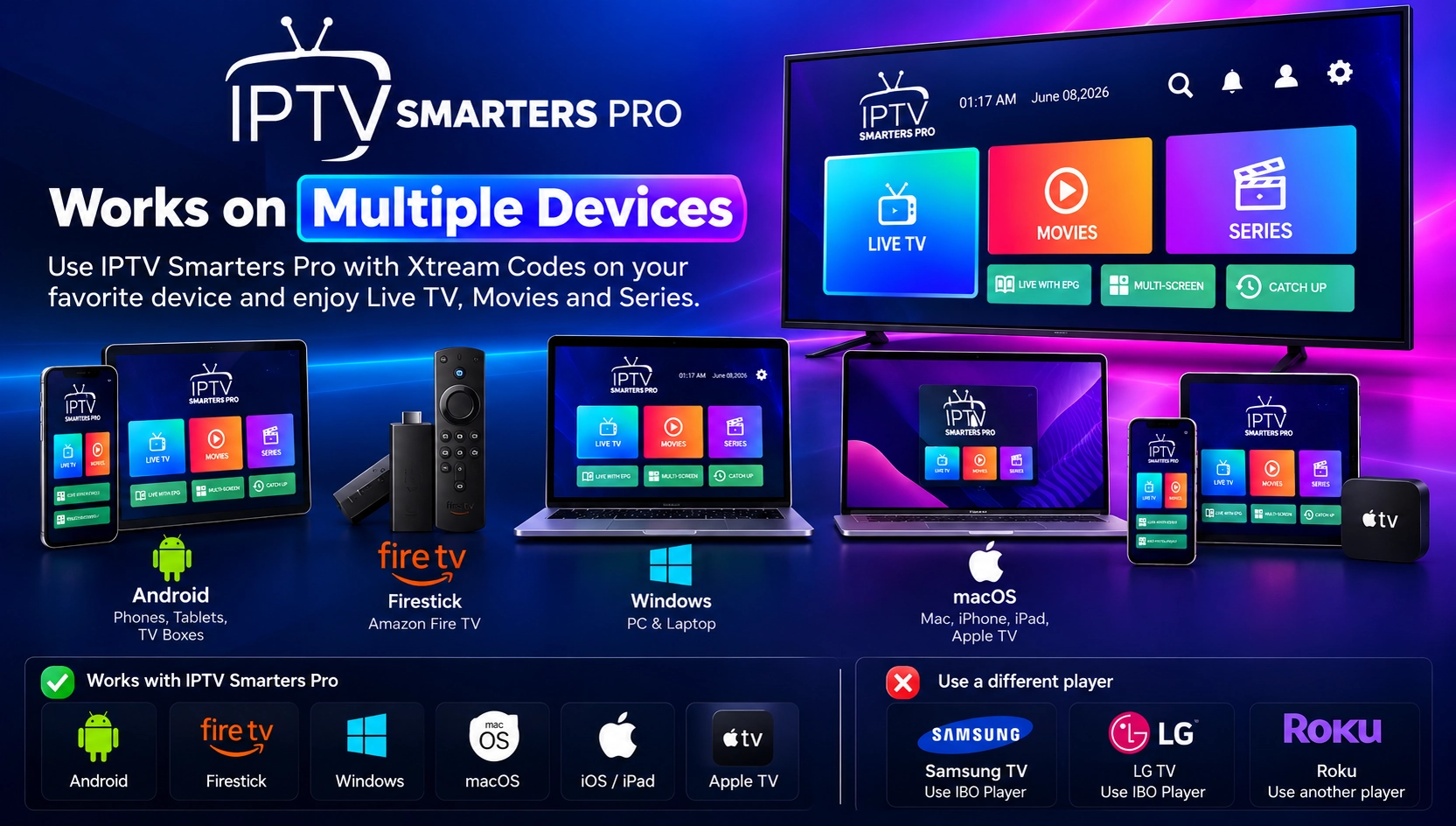
Which devices support IPTV Smarters Pro?
- Android phones, tablets and TV boxes: install IPTV Smarters Pro from Google Play and check that the developer is WHMCS Smarters. See our Android guide.
- Amazon Firestick: on Fire OS devices, install it with Downloader from the official IPTV Smarters website. See our Firestick guide.
- Windows PC: download IPTV Smarters Pro for Windows and run the installer. See our PC and Mac guide.
- Mac, iPhone, iPad and Apple TV: the App Store version is called Smarters Pro. Check which login methods it supports on your device before you rely on it.
On Samsung and LG Smart TVs and on Roku, use a different player. Our IBO Player guide covers Samsung and LG, and our Roku guide covers Roku players.
How to add Xtream Codes to IPTV Smarters Pro
Follow this step-by-step tutorial to add your Xtream Codes login to IPTV Smarters Pro. The screenshots show the current app layout. Menu names can differ slightly between app versions and devices.
Step 1: Open IPTV Smarters Pro and choose Xtream Code
Launch IPTV Smarters Pro on your device. On the Choose Playlist Type screen, select Xtream Code. In some app versions, this option is called Login with Xtream Codes API.

Step 2: Find your Xtream Codes login details
Get the Xtream Codes details supplied by your IPTV provider (see how to get IPTV Xtream Code). You usually find them in your welcome email or customer account. You need three details: your Username, your Password and the Server URL.

Step 3: Fill in your Xtream Codes details
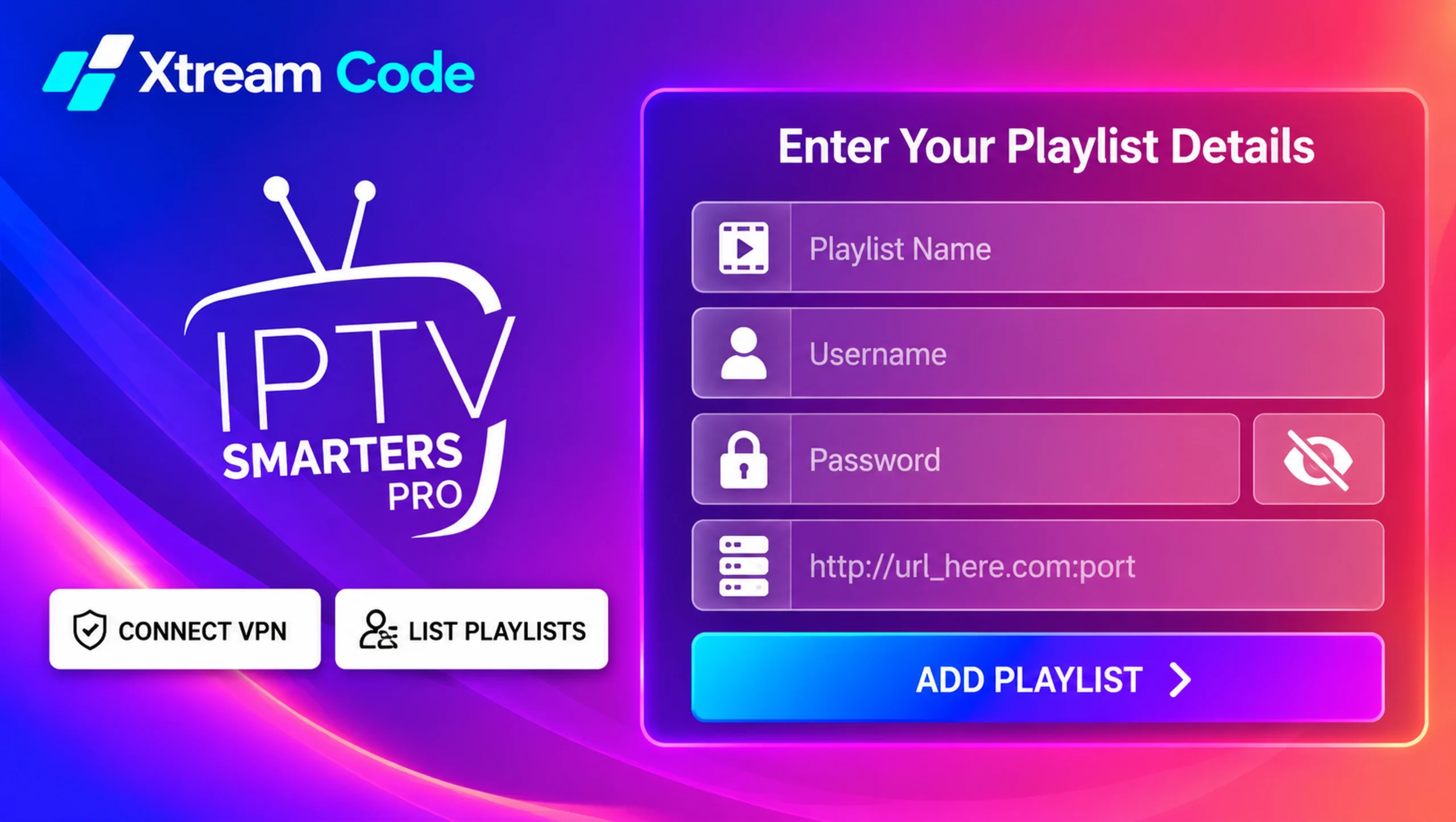
On the Enter Your Playlist Details screen, fill in the fields with your login information:
- Playlist Name: any name you like, for example My IPTV.
- Username: the username from your provider.
- Password: the password from your provider. It is case-sensitive.
- Server URL: the complete address, including
http://orhttps://and the port number if your provider gave one, for examplehttp://url_here.com:port.
Step 4: Press Add Playlist
Check every field for typing mistakes and extra spaces. Then press Add Playlist. IPTV Smarters Pro connects to your provider’s server and starts loading your content.
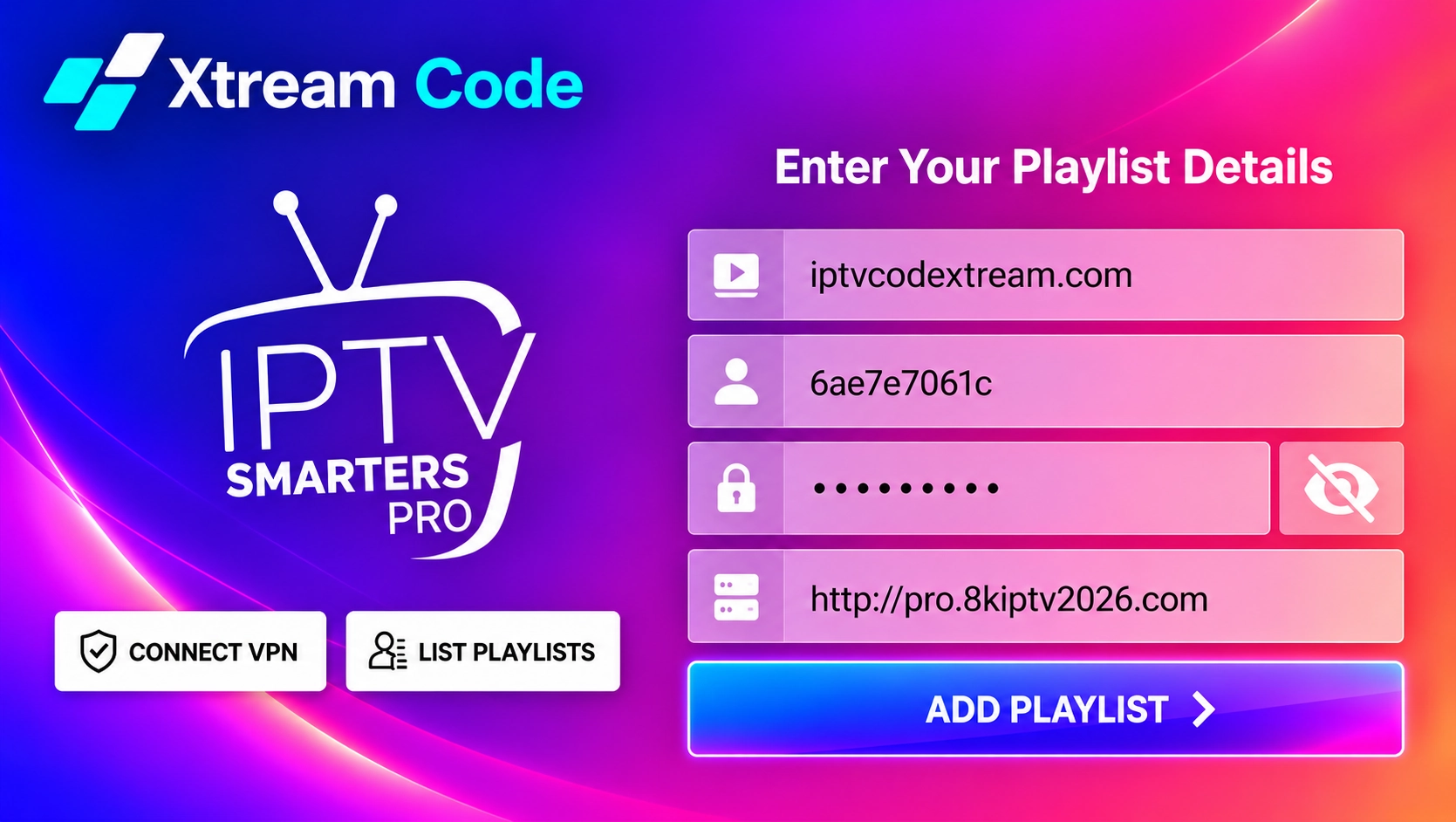
Step 5: Wait while your playlist loads
The app now downloads your Live TV channels, movies and series. You can see the progress on each section of the home screen. The first load can take a few minutes, depending on the size of your playlist and your internet speed, so let it finish before you start watching.
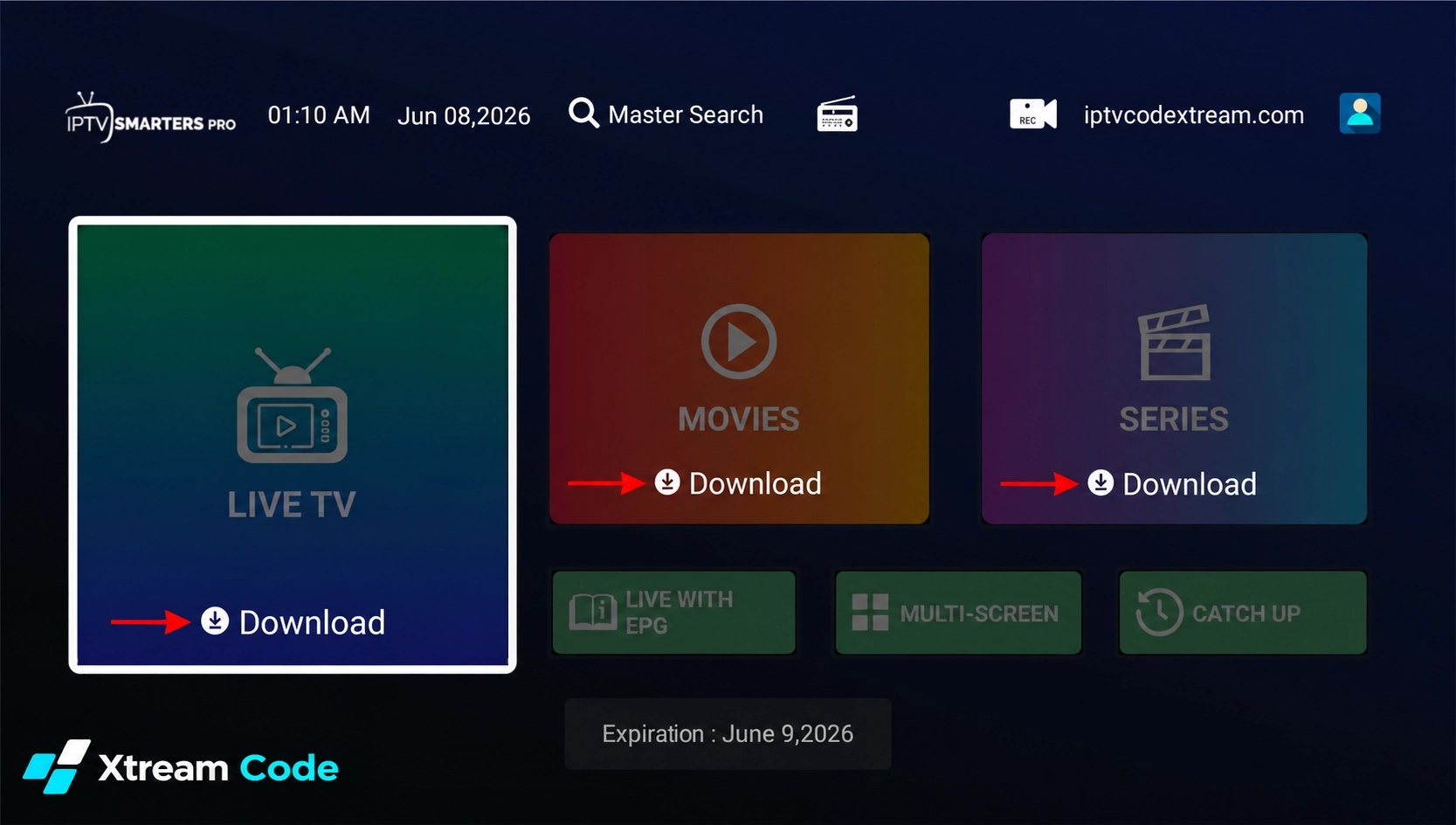
Step 6: Your IPTV Smarters Pro setup is ready
When the download is complete, the home screen shows Live TV, Movies and Series, plus extra options such as Live with EPG, Multi-Screen and Catch Up. You can also see when your subscription expires. Your IPTV Smarters Pro setup is now ready to use.

Step 7: Start watching
Open Live TV to browse channels by category, or go to Movies and Series for on-demand content. Select a channel to start playback. Enjoy your favourite live TV channels, movies and TV shows.

Is IPTV Smarters Pro free?
Yes. IPTV Smarters Pro is free to download and use on Android, Firestick and Windows. Some versions show optional paid upgrades, and the Apple version offers an in-app purchase, so check the store listing on your device.
The app is a player only. It includes no channels, so you still need a subscription or an authorized trial from an IPTV provider. Be careful with websites or sellers that bundle the app with channels or promise free access to paid content.

Tips for a better IPTV Smarters Pro experience
- Switch the video player: if a channel does not play, select another built-in player in the settings.
- Refresh your content: use the reload or refresh option when your provider adds new channels or films.
- Use parental controls: lock categories you do not want others to see.
- Use a wired connection: connect your TV box or PC with an Ethernet cable when possible.
- Keep the app updated: install updates only from the official store or website.
IPTV Smarters Pro vs other IPTV players
IPTV Smarters Pro is a great choice for phones, tablets and Windows PCs because you type your login directly in the app. For a classic TV guide on an Android TV box, see our TiviMate guide. For Samsung and LG Smart TVs or Apple TV, read our IBO Player guide.

Where can you get your IPTV Xtream Codes?
Your Xtream Codes login details always come from your IPTV service provider. Installing IPTV Smarters Pro does not create them, because it is a player only and includes no channels.
After you buy a subscription or receive an authorized trial, look for your details in the welcome email, your customer account or messages from your provider. Keep your username, password and server URL private, and never share them publicly.
Looking for a provider? Compare your options using the button below.
Common IPTV Smarters Pro problems and fixes
Invalid login or authorization failed
Type your username and password again and watch for extra spaces and upper or lower case letters. Check that your subscription is still active.
Wrong server URL
Copy the complete server address from your provider, including http:// or https:// and the port number if one was supplied.
Channels not loading or buffering
Restart your router and your device, use a wired connection where possible and close other apps that use bandwidth. Try another video player in the settings.
No programme guide
Open the EPG section and refresh it. If it stays empty, your provider may not supply a guide for those channels.
The app freezes or crashes
On Android and Firestick, clear the app cache in the device settings. Update the app, or uninstall and reinstall it if the problem continues.

Set up IPTV Smarters Pro on your device
Follow our step-by-step device guides for Android, Amazon Firestick and PC and Mac. For other devices, see our guides for iPhone, Apple TV, Samsung and LG Smart TVs and Roku.
Frequently asked questions
Does IPTV Smarters Pro include channels?
No. It is a player only. You need a separate subscription or an authorized trial from an IPTV provider.
Does IPTV Smarters Pro support Xtream Codes?
Yes. Choose Xtream Code (Login with Xtream Codes API in some versions) and enter your server URL, username and password.
Can I add several accounts?
Yes. You can save several user profiles in the app and switch between them.
Is IPTV Smarters Pro available on Samsung or LG TVs?
Use IBO Player on Samsung and LG Smart TVs instead. It is available in both TV app stores.
Why does IPTV Smarters Pro say my login is invalid?
The most common causes are a typing mistake, a wrong server URL, a missing port number or an expired subscription.
Is IPTV Smarters Pro legal?
Yes. It is a legal media player. What matters is the content you watch, so only use authorized IPTV services.
Conclusion
IPTV Smarters Pro is a simple, free way to watch IPTV on Android, Firestick and Windows. Install the app, choose Xtream Code, enter your details and wait for your playlist to load. If something goes wrong, the troubleshooting steps above solve most problems.
Always get your login details from a legitimate, authorized IPTV provider.