
IBO Player: How to Set Up Xtream Codes on Any Device
IBO Player is one of the most popular IPTV players for Smart TVs, streaming devices and phones. It lets you add the Xtream Codes details from your IPTV provider and watch live TV, movies and series in a clean, TV-friendly interface.
This IBO Player guide explains what the app does, which devices it runs on, how activation works and how to add your Xtream Codes playlist step by step. You will also find solutions to the most common problems.
Please note: IPTVCodeXtream does not sell subscriptions, provide logins or host any streams. Only use services that are authorized to distribute the channels they offer. See our Disclaimer for details.

What is IBO Player?
IBO Player is a media player for IPTV playlists. The app does not include any channels, playlists or content of its own. You add the login details that your IPTV provider gives you, and the app loads your channels, on-demand content and programme guide.
What makes it different from many other players is the way you add your login. Instead of typing your details with a TV remote, you open the IBO Player website on your phone or computer and link your playlist to your device. This saves a lot of typing on a TV.
Main IBO Player features
- Xtream Codes and M3U support: add your server URL, username and password, or an M3U playlist link.
- Live TV, movies and series: content is sorted into clear sections and categories.
- EPG: shows the electronic programme guide when your provider supplies one.
- Built-in VLC player: helps with streams that do not play in the default player.
- Posters and information: shows posters, details and trailers for movies and series where available.
- Themes and languages: choose between several themes and select audio and subtitle languages.
What is an IPTV Xtream Code?
An Xtream Code is a set of login details from your IPTV provider: a username, a password and a server URL such as http://example.com:8080. The app uses these details to connect to your provider’s server through the Xtream Codes API. If you do not have login details yet, read our guide on how to get a free IPTV Xtream Code through a legitimate trial.
Which devices support IBO Player?
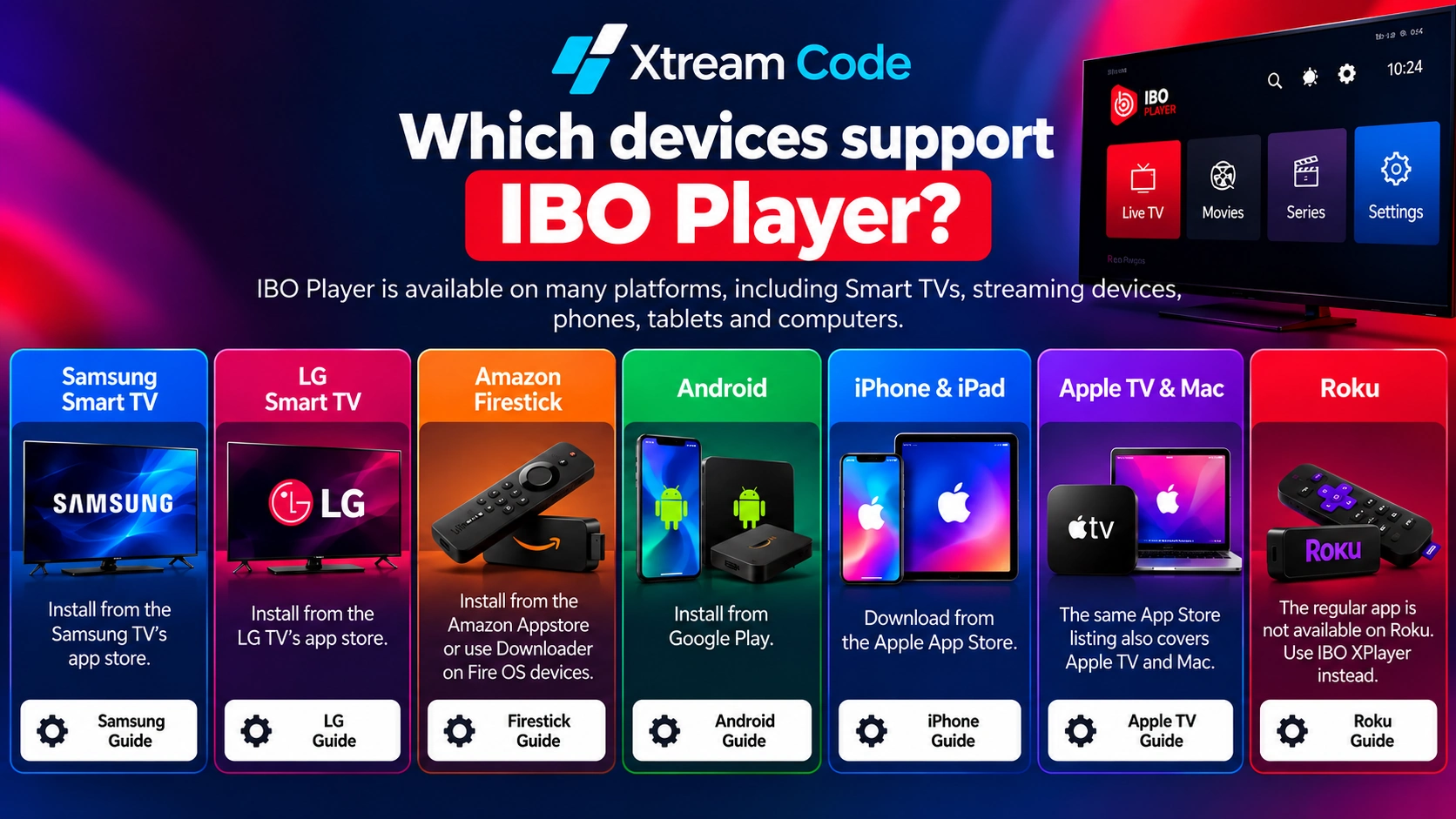
The app is available on many platforms. Availability can vary by country and device model, so check the official store on your device first.
- Samsung and LG Smart TVs: install the app from the TV’s own app store. See our Samsung and LG Smart TV guide.
- Amazon Firestick: install it from the Amazon Appstore where it is listed, or with Downloader on Fire OS devices. See our Firestick guide.
- Android phones, tablets and TV boxes: install it from Google Play. See our Android guide.
- iPhone and iPad: download it from the IBO Player listing on the Apple App Store. See our iPhone guide.
- Apple TV and Mac: the same App Store listing also covers Apple TV and Mac. See our Apple TV guide.
On Roku, the regular app is not available. Roku users can use IBO XPlayer instead, as explained in our Roku guide.
How to set up IBO Player with an IPTV M3U URL
Follow this step-by-step tutorial to add your IPTV playlist to IBO Player with an M3U URL. You add the playlist on the IBO Player website, and the app then loads it on your device. Menu names can differ slightly between app versions.
Step 1: Open IBO Player and find your device information
Launch the IBO Player app on your device. The start screen shows your MAC Address (also called Device ID) and your Device Key. Write both down or take a photo of the screen, because you need them to log in on the website.

Step 2: Get your IPTV Xtream Codes credentials
Obtain your login details from your IPTV provider. You can usually find them in your welcome email or customer account. You will need your Username, Password and Server URL, or the M3U URL that contains them. For more information, check our guide on how to get IPTV Xtream Codes.

Step 3: Visit the official IBO Player website
On your phone or computer, go to iboplayer.com and select Manage Playlists in the top menu.

Step 4: Log in using your device details
Enter your MAC Address and Device Key exactly as they appear in the app, complete the CAPTCHA verification and click Login.

Step 5: Start adding your IPTV playlist
Once you are logged in, the Manage Playlists page opens. Click the Add Playlist option.

Step 6: Enter your playlist information
Choose a Playlist Name, for example My IPTV, and paste your M3U URL into the playlist URL field. The M3U URL from your provider usually looks like http://server:port/get.php?username=...&password=...&type=m3u_plus. Click Add Playlist (or Save) to store it.

Step 7: Confirm your playlist has been added
Your IPTV playlist now appears in the list on the Manage Playlists page. This confirms that it has been successfully added to your IBO Player account.

Step 8: Refresh IBO Player to load your content
Return to the IBO Player app on your TV or device and press OK to refresh the playlist. The app now downloads your channels, movies and series, which can take a few minutes the first time.

Step 9: Open the Live TV section
Once your playlist has loaded, the home screen shows Live TV, Movies, Series and Catch Up. Select Live TV to access the available channels.

Step 10: Start streaming your favourite content
You are all set! Choose a category and a channel to start watching. Enjoy your favourite live TV channels, movies and TV series on IBO Player.

IBO Player free trial and activation
IBO Player is free to download and includes a 7-day free trial with all features. After the trial, you pay a one-time activation fee to keep using it on that device. You can pay on the IBO Player website or, on some platforms, through an in-app purchase. Check the current price before you pay.
- Per device: activation is linked to the Device ID, so each TV, phone or streaming device needs its own activation.
- Player only: the activation fee is for the app. The app includes no channels, so you still need a subscription or authorized trial from an IPTV provider.
- Reinstalling: if you reinstall the app on the same device, your Device ID usually stays the same.

Tips for a better IBO Player experience
- Use a wired connection: connect your TV or streaming device with an Ethernet cable when possible for smoother playback.
- Switch the video player: if a channel does not play, try the built-in VLC player in the app settings.
- Add the EPG link: a programme guide makes it much easier to find what is on.
- Keep the app updated: install updates from your device’s app store to get the latest fixes.
- Use several playlists carefully: you can add more than one playlist on the website, but most subscriptions allow only a limited number of simultaneous connections.
IBO Player vs other IPTV players
IBO Player is a strong choice for Smart TVs because you enter your login in a browser instead of with a remote. If you prefer to type your Xtream Codes login directly in the app, read our IPTV Smarters Pro guide. For Android TV boxes with a classic TV guide layout, see our TiviMate guide.

Where can you get your IPTV Xtream Codes?
Your Xtream Codes login details always come from your IPTV service provider. Installing IBO Player does not create them, because it is a player only and includes no channels.
After you buy a subscription or receive an authorized trial, look for your details in the welcome email, your customer account or messages from your provider. Keep your username, password and server URL private, and never share them publicly.
Looking for a provider? Compare your options using the button below.
Common IBO Player problems and fixes
The playlist does not appear
Restart the app. Then check that you logged in to the website with the exact Device ID and Device Key shown in the app, and that you saved the playlist.
Invalid server URL or login
Copy the complete server address from your provider, including http:// or https:// and the port number if one was supplied. Type your username and password again and watch for extra spaces and upper or lower case letters.
Channels not loading or buffering
Check that your subscription is still active. Restart your router and your device, use a wired connection where possible and pause downloads on other devices.
The free trial has ended
When the 7-day trial expires, the app asks you to activate it. Pay the one-time activation fee for that device to continue.
The app does not open or crashes
Update the app and your device software. If the problem continues, delete and reinstall the app, then check whether your device details have changed.

Set up IBO Player on your device
Follow our step-by-step device guides for Samsung and LG Smart TVs, Amazon Firestick, Android, iPhone and Apple TV.
Frequently asked questions
Is IBO Player free?
IBO Player is free to download and includes a 7-day free trial. After that, a one-time activation fee applies for each device.
Does IBO Player include channels?
No. It is a player only. You need a separate subscription or an authorized trial from an IPTV provider.
Does IBO Player support Xtream Codes?
Yes. You can add your server URL, username and password on the IBO Player website, or use an M3U link instead.
Can I use IBO Player on several devices?
Yes, but each device has its own Device ID and needs its own activation. Your IPTV subscription may also limit how many devices can watch at the same time.
Why can’t I type my login in the app?
The app links your playlist to your device through its website, so you enter your details on your phone or computer instead of with the remote.
Is IBO Player legal?
Yes. It is a legal media player. What matters is the content you watch, so only use authorized IPTV services.
Conclusion
IBO Player is an easy way to watch IPTV on Smart TVs, streaming devices and phones. Install the app, note your Device ID and Device Key, add your Xtream Codes playlist on the IBO Player website and reload the app. After the 7-day trial, a one-time activation keeps it working on your device.
Always get your login details from a legitimate, authorized IPTV provider.